What a monitor specification tells you
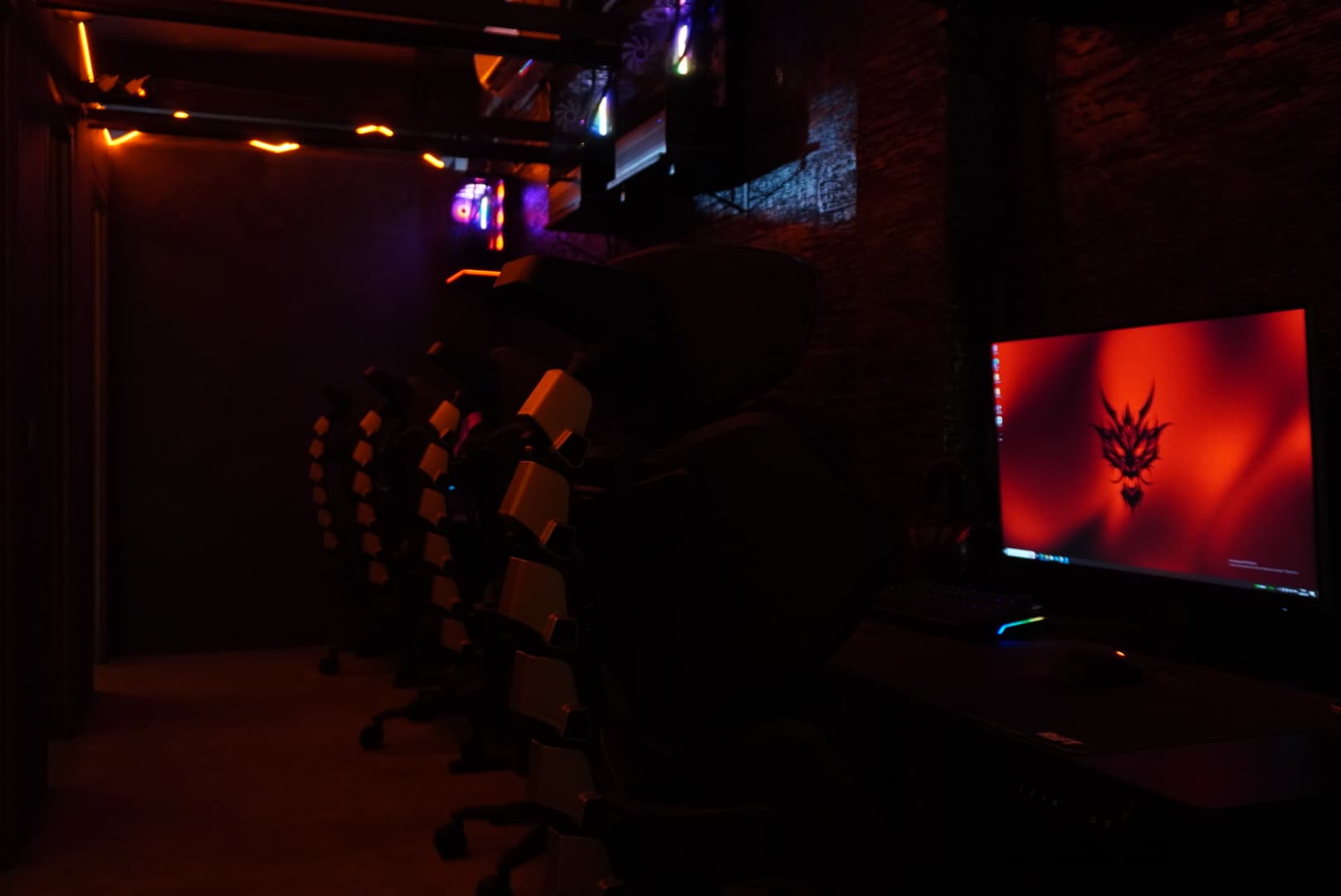
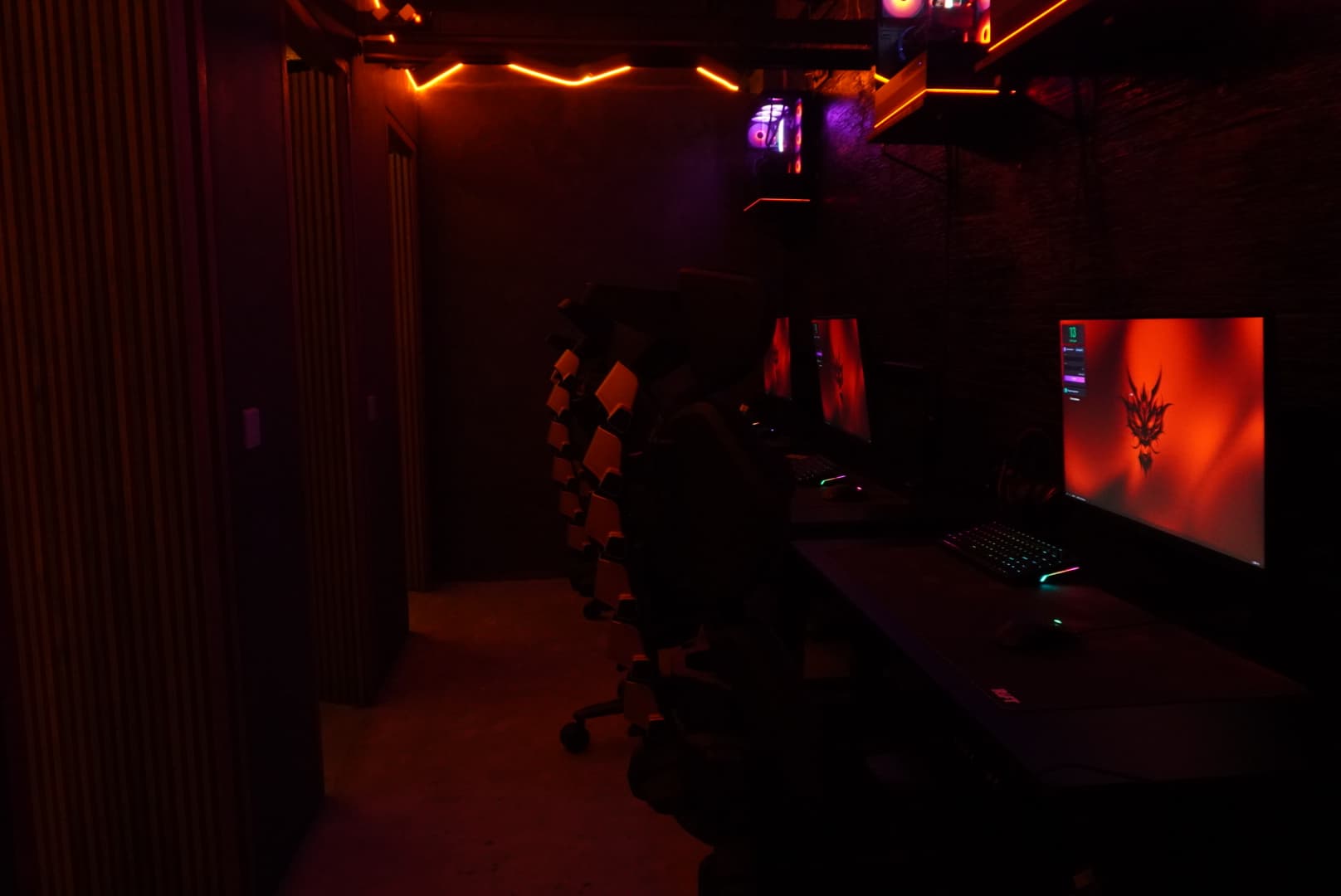
The 240 Hz label describes a monitor’s refresh rate, not a guaranteed frame rate in every game. QHD refers to resolution, while OLED describes display technology. They are different characteristics and should be considered separately. RIFT lists MSI MAG 274QF 2K 240 Hz monitors for Basic and Cage, and an AOC OLED Q27G4ZD QHD 240 Hz display for VIP. Those names do not guarantee a game’s frame rate or its connection to a server. Start with the equipment and your own comfort.
Check the active display settings
Before the first match, look at the resolution and refresh rate selected in the system and in the game. A monitor’s listed capability and its active mode are not necessarily the same thing. If an option is unavailable or unclear, ask a staff member rather than changing drivers or system components yourself. Then check interface size, text readability and brightness in the room. You do not need to copy someone else’s settings; choose a display setup that lets you read the information comfortably.
Change one game setting at a time
Once the game is open, begin with your familiar profile if your account provides one. Change only what is getting in the way, such as interface size, particular visual effects or the display mode. After each adjustment, test the result in a quiet moment rather than during an important match. This makes the cause of a change easier to understand and reverse. Avoid chasing a counter at the expense of a comfortable experience. Results depend on the game, the settings and current conditions.
Set up the mouse, sound and seating together
A familiar sensitivity can feel different when the mouse shape changes or your arm rests in a different position. Make space on the desk, adjust the chair and keyboard placement, and then test your controls. Ask before installing extra utilities. In the sound settings, select the intended output device and microphone, begin at a moderate volume and check communication with friends before a match. A short group check can prevent interruptions later. If something feels technically wrong, ask the team instead of experimenting throughout your session.
Keep useful preferences, sign out of personal accounts
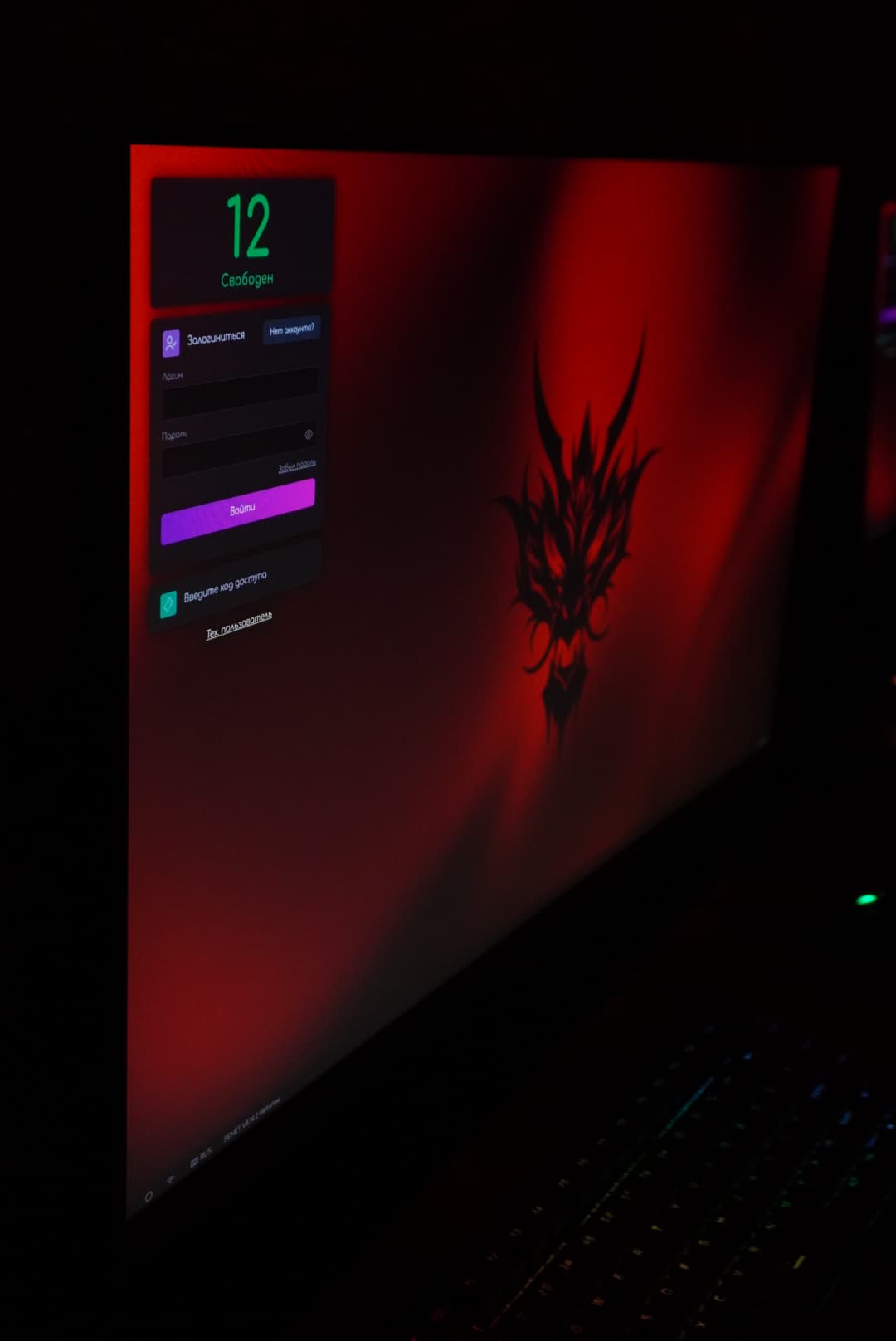
After the session, record useful preferences in your own notes: sensitivity, key bindings and display choices. That is easier than trying to remember them next time. Do not include passwords, recovery codes or other access details. If you changed a shared device profile, ask whether it should be restored. Sign out of your accounts, remove personal files and check the browser before leaving. The station should remain ready for another guest, while your accounts stay under your control regardless of the zone you choose next time.